

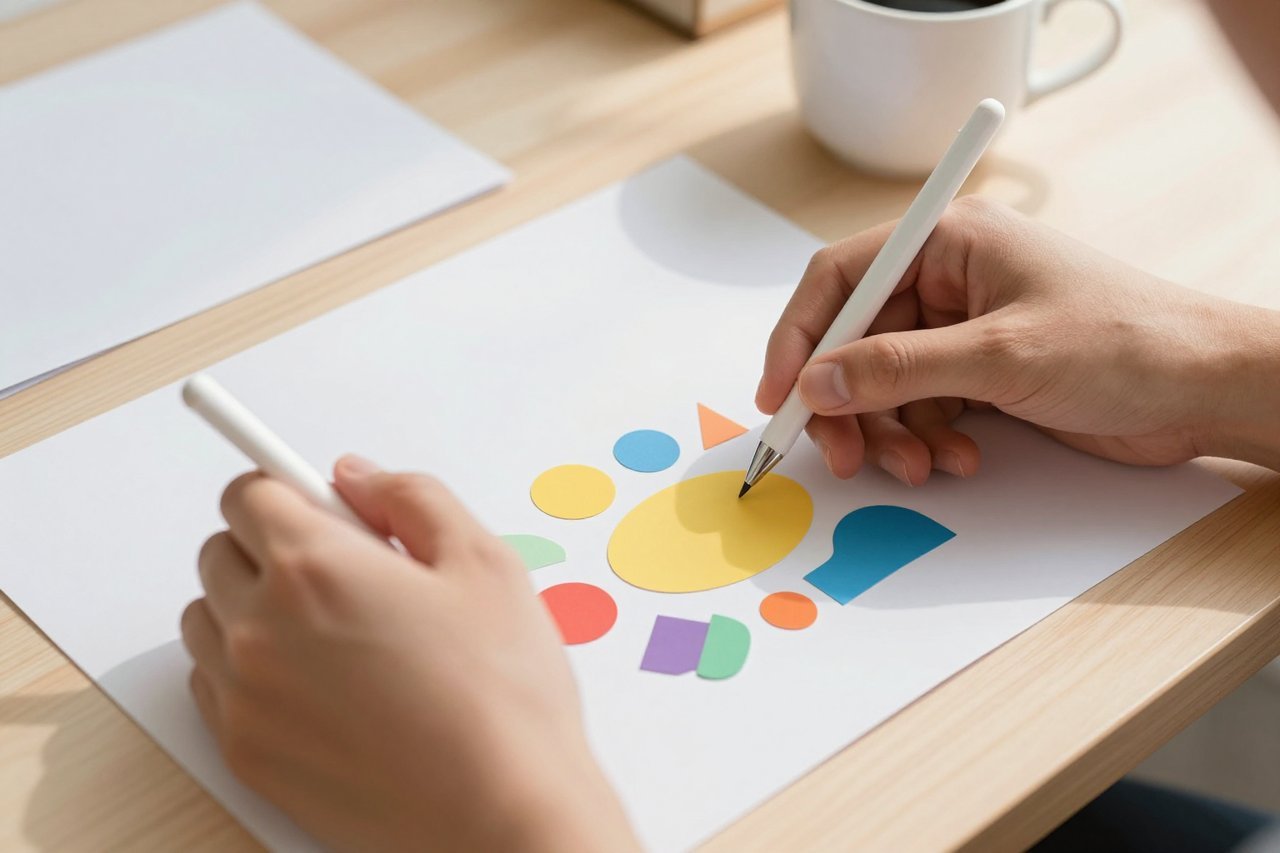
Ask most AI image tools for a logo and you’ll get something beautiful. Then ask for a version where the yellow is slightly darker, and you’d better hope the prompt works a second time. Recraft AI takes a different route: it generates actual vector graphics you can edit, resize, and export as SVGs. I’ve been using it to mock up app icons, brand boards, and social templates, and it’s become my default for quick client concepts. It’s not flawless, but it’s solving a problem most AI tools ignore.
What Exactly Is Recraft AI?
Recraft AI is a generative design platform built specifically for graphic design outputs. Instead of producing a raster image like a JPEG, it creates vector files using paths, curves, and scalable shapes. You type in a description, choose a style category such as vector art, illustration, icon, logo, or pixel art, and Recraft generates an SVG you can open in Figma or Illustrator.
The platform also includes editing functions. You can select parts of an object, change colors, and move shapes after generation. No need to start over when the client says the icon feels too aggressive. Our earlier guide to designing with Recraft AI walks through the interface in detail, but the important takeaway is that the output stays editable.
Why Vector Output Changes Everything
Most AI image generators are raster at heart. They produce pixels arranged in a grid, which is fine for mood boards but painful when you need a billboard or a favicon. Midjourney is superb for cinematic, atmospheric images, and you can get a full sense of its capabilities in our Midjourney prompt and pricing guide. But it is still raster-first. Recoloring a specific area often means running a new prompt and hoping for the best.
Recraft was designed around SVG from the ground up. A vector file stores mathematical descriptions of lines and curves, so it scales infinitely without losing quality. That matters when the same icon needs to appear on a business card and a truck wrap. It also means the AI can let you change a node or swap a fill color without destroying the rest of the artwork.
The Feature Set That Goes Beyond Generation
Recraft’s base generation is only the start. A few features make it genuinely useful for daily design work.
Vector Editing Mode
When you generate an SVG, you can switch to the editor and adjust paths and anchors. The AI doesn’t just fake it by exporting a vector trace of a pixel image. It creates actual smooth curves. In practice, I turned a cartoonish bulldog into a flat mascot and then changed the color of its ear without touching the rest of the body.
Brand Styles and Consistency
Recraft lets you upload a logo, define a color palette, and set a style reference. That’s where it shines. I made a set of six landscape icons and they felt like one cohesive family. It isn’t perfect with complex patterns, but for a first round of client concepts, the consistency saves hours.
Transparent Backgrounds and Multiple Export Formats
Every asset exports with a transparent background option. You can save as SVG, PNG, or even Lottie for lightweight animation. I tested the Figma plugin and exported straight into a component library, which is something most image generators simply cannot do.
During one session, I used Recraft to assemble a small brand kit:
- 10 app icons in four color variations each
- a logo lockup combining a wordmark and custom mark
- a set of UI arrows, buttons, and toggles
- one flat hero illustration
The whole batch took less than 15 minutes, and the icons stayed crisp at both 512px and 1024px.
Where Recraft AI Still Frustrates
Recraft has quirks. Text generation inside vector art is spotty. Ask for a sales badge with “20% OFF” and you’ll get close but rarely exact. The style presets in the community can also feel generic if you want something with a unique visual twist. And the interface slows down when you edit complex vector files with hundreds of nodes.
The free tier is also fairly limited for high-resolution work. If you are producing full brand boards every day, you will hit the credit ceiling quickly. There is still no proper text tool for post-generation copy, so you’ll need to handle typography in another app.
Recraft AI vs Midjourney for Graphic Work
Midjourney remains the default for ambitious, cinematic imagery. For that specific use case, it is still hard to beat. But when the deliverable is a flexible, scalable asset, Recraft has the edge. I would use Midjourney for a mood board or a surreal hero visual, and Recraft for the actual working files.
If you are trying to decide where each tool belongs in your workflow, our Midjourney pricing and roadmap overview breaks down how the two compare in practice and where their paths diverge.
Pricing and Who Should Pay
Recraft has a free plan with daily credits, which is enough for low-resolution experiments and small projects. Paid plans unlock faster generation, more credits, and a commercial license. Details change regularly, so the Recraft designer’s guide lists the latest package options and limits.
For freelance designers, even one paid month can pay for itself by removing the manual tracing and re-drawing work on early concepts. For casual users who just want vector icons for a side project, the free tier is surprisingly usable.
Practical Prompts That Work Well in Recraft AI
The best Recraft prompts are explicit about style and structure. Vague phrases like “cool logo” produce weak results. Instead, describe the visual system, the level of detail, and the background you need.
This one performed well for me:
Flat vector illustration, minimal line art, rounded corners, single color, white background, a friendly robot watering a plant, clean shapes, no gradients, no shadow.
Because Recraft keeps the vector editable, you don’t need to nail the prompt first time. Generate four variants, pick the closest one, and fix the remaining details in the editor. That workflow takes the pressure off prompt writing and puts the control back in the design stage.