

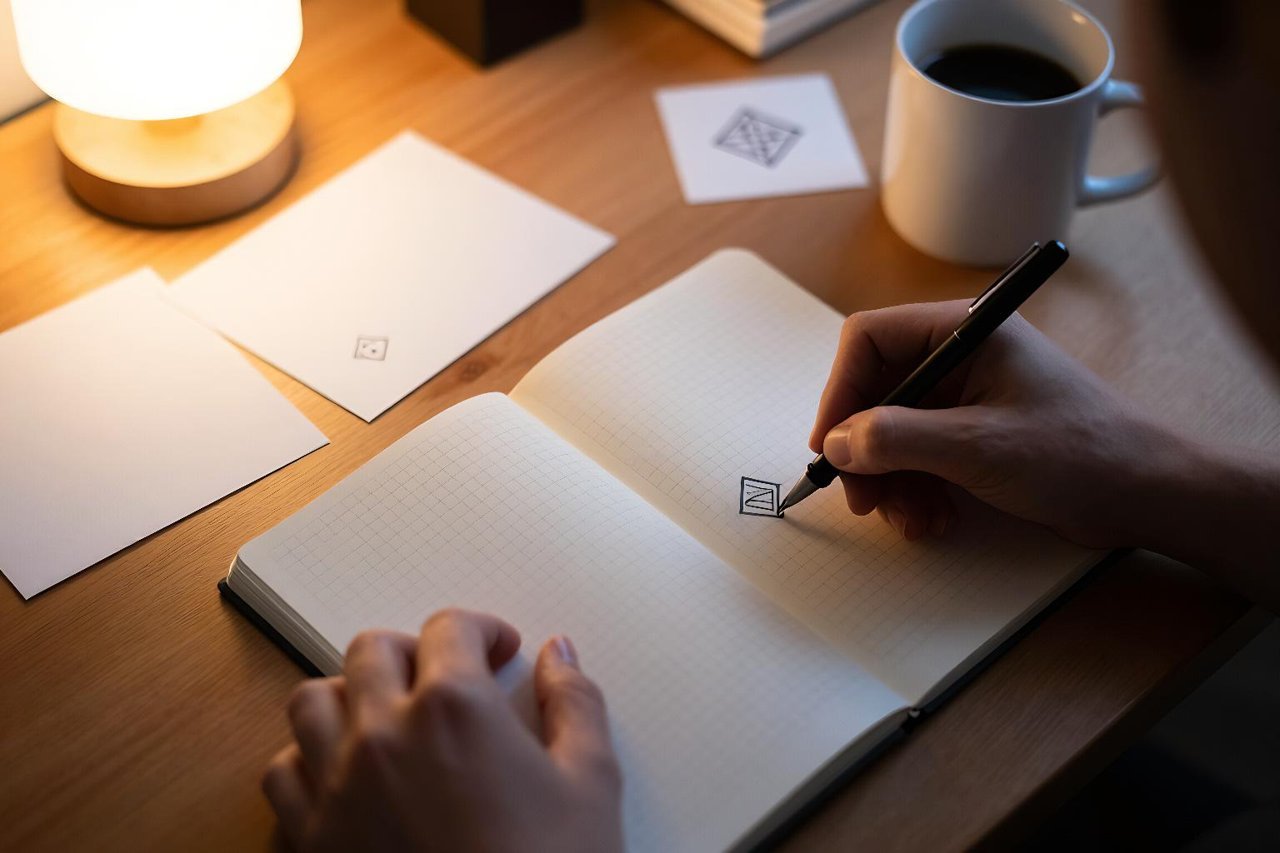
Ask ten designers to draw a 24-icon set and you’ll get ten different stroke weights, four corner radii, and one person who quietly abandons the grid altogether. Keeping a set visually coherent is the tedious part of icon work, and it’s the specific problem Recraft was built to solve. This isn’t a general image generator that occasionally coughs up something usable. It’s a design tool with vector output, style memory, and a canvas that assumes you’ll iterate.
What follows is the workflow I run when a client needs a full icon set by Friday. Done twice, it takes around 45 minutes for 20 to 30 icons.
Step 1: Set Up the Project Around Your Output Format
Before typing anything, decide what you’re actually shipping. Recraft separates vector generation from its image models, and picking the wrong one burns credits fast.
The style panel groups outputs into categories including Icon, Vector art, Illustration and Photorealism. For an icon set, start with Icon. It produces genuine SVG paths rather than pixels, so you can open the file in Figma or Illustrator and nudge individual anchor points. Raster output would leave you tracing every curve by hand, which defeats the point entirely.
Pick a grid and stay on it
Set your artboard to 24×24 or 48×48 and generate at that size. Vector output scales without loss, so there’s no benefit to working large. Naming the grid in your prompt helps more than you’d expect, because it nudges the model toward consistent padding and optical centring.
Step 2: Write a Prompt With Six Fixed Slots
Most people write one sentence describing the object. That’s half a prompt. To get a set that hangs together, you describe the object and the drawing rules, every single time.
The template I keep in a text file:
- Subject — “flat line icon of a coffee cup”
- Stroke — “2px stroke, rounded caps and joins”
- Colour — “single colour, navy #1F2A44, no gradients”
- Grid and framing — “24×24 grid, centred, 2px padding all sides”
- Fill — “outline only, no shading, no drop shadow”
- Negatives — “no text, no background, no border”
Now swap only the first slot. Coffee cup becomes bus, becomes calendar, becomes padlock. Five of the six lines never change, and that’s exactly why the set looks like one family rather than six freelancers.
Watch out for words that produce letterforms
If you prompt for a “search icon”, expect a literal letter S to appear as a shape inside the circle. Ask for a “magnifying glass” instead. Same story with “settings” — say “gear” or “cog”. A dozen icon names double as text prompts, and Recraft will happily draw the text.
Step 3: Generate a Batch, Then Lock the Style
Don’t accept the first icon that looks fine. Generate four to six variations, pick whichever one matches your intended proportions, then create a custom style from it using the style reference control. That style applies to every subsequent generation, and the consistency problem more or less evaporates.
Two habits make this work properly:
Choose a representative icon as your anchor. Pick something with a distinctive shape, like a bicycle or a key, rather than a plain circle. The style carries more recognisable characteristics.
Reuse the style before you regenerate. If an icon comes out wrong, tweak the subject wording inside the same style rather than starting a fresh generation from scratch. Starting over is how sets drift. If you want the wider picture of what the tool can do beyond icons, it’s worth reading a designer’s guide to the AI that makes vector art effortless before you commit to a workflow.
Step 4: Clean the SVG Before It Goes Anywhere Near Production
Generated vectors are close to final, not final. Budget ten seconds per icon for cleanup, and you’ll avoid a bug report six months later when someone notices the strokes are inconsistent.
Export as SVG, drop the file into your design tool, and run this pass:
- Ungroup everything and delete stray points sitting outside the artboard
- Expand strokes to outlines, then re-check the weight visually
- Snap anchor points to the pixel grid, especially on horizontal and vertical edges
- Reassign the fill or stroke colour to your brand token rather than the hex the model chose
- Rename the layer to match your icon naming convention (icon-calendar, icon-padlock)
The most common defect is a stroke that renders fractionally, say 1.9px instead of 2px, because the model drew it as a filled shape rather than a true stroke. Expanding and then reapplying a clean 2px stroke fixes it permanently.
Step 5: Stretch the Same Style Across Other Assets
Once a style exists, you can push it beyond icons. Two things worth trying on the same project:
Generate an empty device mockup, then place your finished icon inside it for a product page hero. Recraft’s mockup presets handle the perspective for you, which saves the usual twenty minutes of warping a screenshot in Photoshop.
Sketch a rough logo idea on paper, photograph it, and run it through the vectoriser. You get editable paths in about the time it takes to describe the shape in words, and you keep the hand-drawn proportions that a text prompt would flatten out.
Step 6: Recognise When Recraft Is the Wrong Tool
Recraft excels at crisp, graphic, controllable output. It is not the place to make a moody photographic hero image or a painted editorial illustration. For photorealistic scenes with accurate lighting and materials, DALL-E handles prompt-following and photoreal detail more convincingly. For atmospheric, painterly imagery with a strong aesthetic signature, Midjourney remains the stronger choice for stylistic, mood-driven images. Keeping the right tool for the right job saves more time than any prompt trick.
Credits, Plans and What You’ll Actually Spend
Recraft works on a credit system. The free tier gives you a daily allowance, and generations made there are public. Paid tiers add private generations and a considerably larger allowance. At the time of writing, the entry paid plan sits in the low double digits per month, with higher tiers for teams.
In practice, a 24-icon set costs maybe 90 to 120 generations once you include variations, wrong turns and the four icons you regenerate for no good reason. The style-locking step is what stops that number running away, because you stop paying for inconsistency.
The 45-Minute Version
Here’s how the whole thing sequences when you’ve done it once or twice. Ten minutes setting up the project, choosing the grid and writing the six-slot prompt template. Five minutes generating variations of your anchor icon and creating a custom style from the best one. Fifteen minutes running the remaining icons through that style in batches of two or three. Ten minutes exporting, cleaning and renaming in your design tool. Five minutes for the mockup and the final export package.
The first attempt will take twice as long, mostly because you’ll second-guess the prompt template. Resist the urge to write a new prompt per icon. The entire value of the workflow is that five of your six prompt lines never change, and the icons come out looking like they belong to the same designer on the same afternoon.