

Start with a shot list, not a script
Most people open Runway, paste a paragraph, and hope. That rarely works. Runway generates clips in short bursts, usually 5 or 10 seconds, so a 30-second ad needs 6 to 8 separate shots. Write those shots first.
Take a fictional cold brew brand, Northside Coffee. Instead of ‘Make an ad about cold brew,’ build this:
- Shot 1 (0:00-0:04): Macro of condensation sliding down a glass. Camera slowly dollies in.
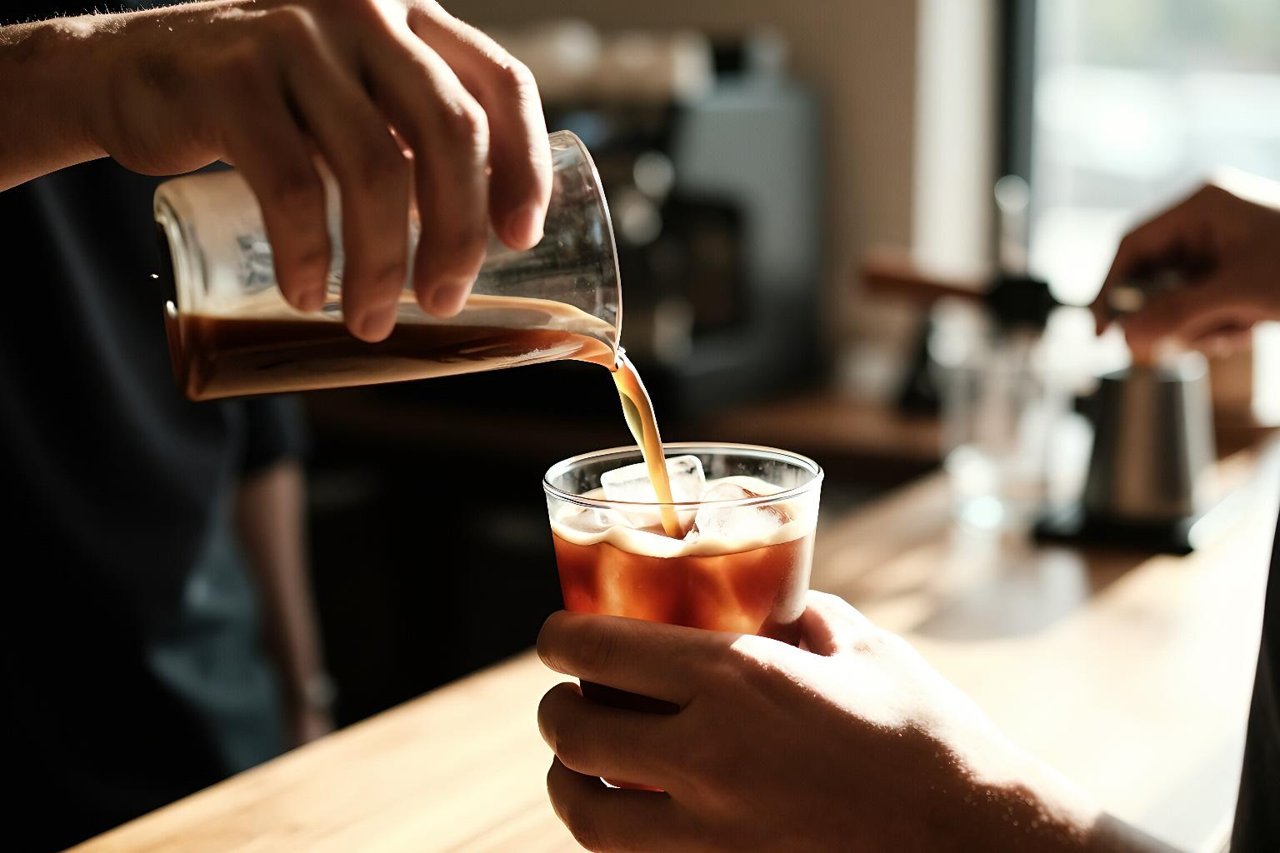
- Shot 2 (0:04-0:08): Cold brew pours over ice cubes. High-speed slow motion.
- Shot 3 (0:08-0:12): Barista’s hand places a glass on a wood table. Shallow depth of field.
- Shot 4 (0:12-0:16): Customer takes a sip, eyes close, soft smile. Warm window light.
- Shot 5 (0:16-0:22): Wide shot of cafe interior, morning sun, few people.
- Shot 6 (0:22-0:30): Product on table, steam rising, logo area left empty.
Each shot has one action. Runway struggles when a single prompt asks for a pour, a smile, and a camera move all at once. Keep it simple. If you’re new to the platform, it helps to understand Runway’s model lineup and interface before you burn credits.
Write a prompt spine and reuse it
A prompt spine is a short phrase that stays consistent across every shot. For Northside Coffee, it might be: ‘cinematic, shallow depth of field, warm morning light, 35mm film grain, muted teal and amber palette.’ Paste that into each prompt, then change only the subject and action. This is the single easiest way to make six clips look like they belong to the same project.
Generate your first pass in text-to-video
Open Runway, choose Text to Video, and pick a model. Gen-3 Alpha gives cleaner motion for product shots; Turbo is faster and cheaper when you’re just testing an idea. For Shot 2, paste:
‘High-speed slow motion of dark cold brew coffee pouring over clear ice cubes in a tall glass, splashes suspended mid-air, warm morning light from a window, shallow depth of field, cinematic, 35mm film grain.’
Set duration to 5 seconds and aspect ratio to 16:9. Hit generate three or four times. You are not looking for perfection yet. You are looking for one take where the liquid behaves, the ice doesn’t morph, and the light matches your spine.
Credits matter here. On the Standard plan, 625 monthly credits go quickly if you render 10-second clips at 10 credits per second. Five-second Turbo generations are much cheaper, so use them for experimenting. Save the expensive renders for shots you know you’ll keep.
Switch to image-to-video when composition matters
Text-to-video is great at motion, weaker at exact framing. If Shot 6 needs the product in the lower third with negative space for a logo, generate a still first. Tools like Midjourney can give you a precise composition, and a practical Midjourney prompt guide will help you match your Runway palette. Upload that still into Runway’s Image to Video, then describe only the motion: ‘steam rising slowly, subtle camera push in, no change to composition.’
Use camera controls and Motion Brush like a director
Runway’s camera controls are not cosmetic. They change how the model interprets the scene. A ‘dolly in’ reads differently from a ‘zoom in.’ A ‘pan left’ can reveal a background that a static shot would hide. For Shot 5, try a slow pan left across the cafe, with the prompt ‘wide shot of a quiet coffee shop, morning sun through windows, people reading, warm tones, slow pan left.’
Motion Brush in practice
Motion Brush lets you paint over one area and set its direction and speed. It’s perfect for isolating movement. On Shot 2, paint only the coffee stream and the ice cubes. Set horizontal motion to 0, vertical to 2, and ambient to 0. Leave the glass and table unpainted. This stops the whole frame from drifting, which is a common reason clips feel like a dream sequence.
When to lock the camera instead
If a hand or face keeps warping, remove camera movement entirely. Add ‘locked-off tripod shot, static camera’ to your prompt. Motion plus a morphing subject is a recipe for artifacts. Static shots are easier to fix later in editing.
Extend, stitch, and fix the timeline
Runway’s Extend feature can add four or five seconds to a clip, but treat it as a rescue tool rather than a default. Extended clips tend to drift in color and motion. A better habit is to generate each shot separately, then cut on action: a pour, a hand movement, a door opening. Those cuts hide the seams.
For assembly, you don’t need a full editing suite. A tool like Kapwing’s AI editor can trim, add captions, and mix music without a steep learning curve. Bring your Runway clips in, arrange them on the timeline, and add a scratch soundtrack. If a clip feels too slow, speed it up by 10% to 20%. If it feels too fast, slow it to 80% and add a subtle crossfade.
Fixing the five most common Runway artifacts
- Melting hands: Re-roll the clip with a static camera and a simpler action. If it persists, generate a close-up of the object instead.
- Flickering light: Remove ‘flickering’ or ‘strobe’ from your prompt. Add ‘consistent lighting, no flicker.’
- Warping faces: Reduce motion settings. Use a medium shot rather than an extreme close-up. You can also inpaint the face in a later frame.
- Rubber objects: Add ‘rigid, solid’ to the prompt. For product shots, image-to-video from a still usually holds shape better.
- Color drift between clips: Apply the same LUT or color correction to every clip in your editor. Your prompt spine helps, but it won’t lock exposure.
If a prompt keeps failing, run the same idea through another model to see what you’re missing. A step-by-step PixVerse workflow can show you how different platforms handle the same action, and you can bring those insights back to Runway.
A real 30-second example, shot by shot
Here’s how the Northside Coffee ad comes together in Runway, with settings and rough credit costs. Assume Gen-3 Alpha at 10 credits per second for final shots and Turbo at 5 credits per second for tests.
- Shot 1, 4s: ‘Macro of condensation on a glass, slow dolly in, warm light, 35mm grain.’ Generate 3 Turbo tests (15 credits each), then 1 final Alpha (40 credits).
- Shot 2, 4s: ‘Cold brew pouring over ice, high-speed slow motion, splash suspended.’ Use Motion Brush on liquid only. 3 tests plus 1 final (85 credits).
- Shot 3, 4s: ‘Barista hand places glass on wood table, shallow depth of field, static camera.’ 2 tests plus 1 final (70 credits).
- Shot 4, 4s: ‘Customer sips coffee, eyes close, soft smile, warm window light, medium shot.’ Likely needs 4-5 tests because faces are hard. About 105 credits.
- Shot 5, 6s: ‘Wide shot of cafe interior, morning sun, slow pan left, people reading.’ 3 tests plus 1 final (85 credits).
- Shot 6, 8s: Image-to-video from a Midjourney still. ‘Steam rising, subtle push in, product centered lower third.’ 2 tests plus 1 final (80 credits).
Total: roughly 440 credits, or about two-thirds of a Standard plan month. That’s realistic for a polished 30-second spot. If you’re on a tighter budget, use Turbo for everything and accept slightly softer motion.
Sound, voice, and the final 10%
Runway handles visuals, but audio is where most AI videos fall apart. Add a real sound design pass: a subtle ice clink, a low room tone, a soft music bed. If you need a talking head, record your voiceover separately and use Runway’s Lip Sync to match a generated character. Keep the dialogue short. Three to five seconds per line is much easier to sync than a 20-second monologue.
Export settings that survive social compression
Export at 1080p minimum, 4K if your plan allows and you’re delivering to a client. Use H.264, 20-25 Mbps for 1080p, 50-60 Mbps for 4K, and 48 kHz audio. For vertical social, set your Runway project to 9:16 from the start rather than cropping later. Cropping a 16:9 clip to 9:16 often cuts the subject’s head or the product out of frame.
Your first 15-minute practice drill
Pick one object on your desk. Generate six 5-second clips of it from different angles: a slow push in, a static wide, a top-down shot, a macro detail, a shot with motion brush on a moving part, and a shot with a hand entering frame. Use the same prompt spine for all six. Then cut them together in a simple timeline with one music track.
You’ll learn more from that drill than from watching an hour of tutorials. You’ll see which prompts hold up, how much camera movement is too much, and where Runway needs a still image instead of text. Do it once a week with a new object, and within a month you’ll have a mental library of prompts that actually work.