

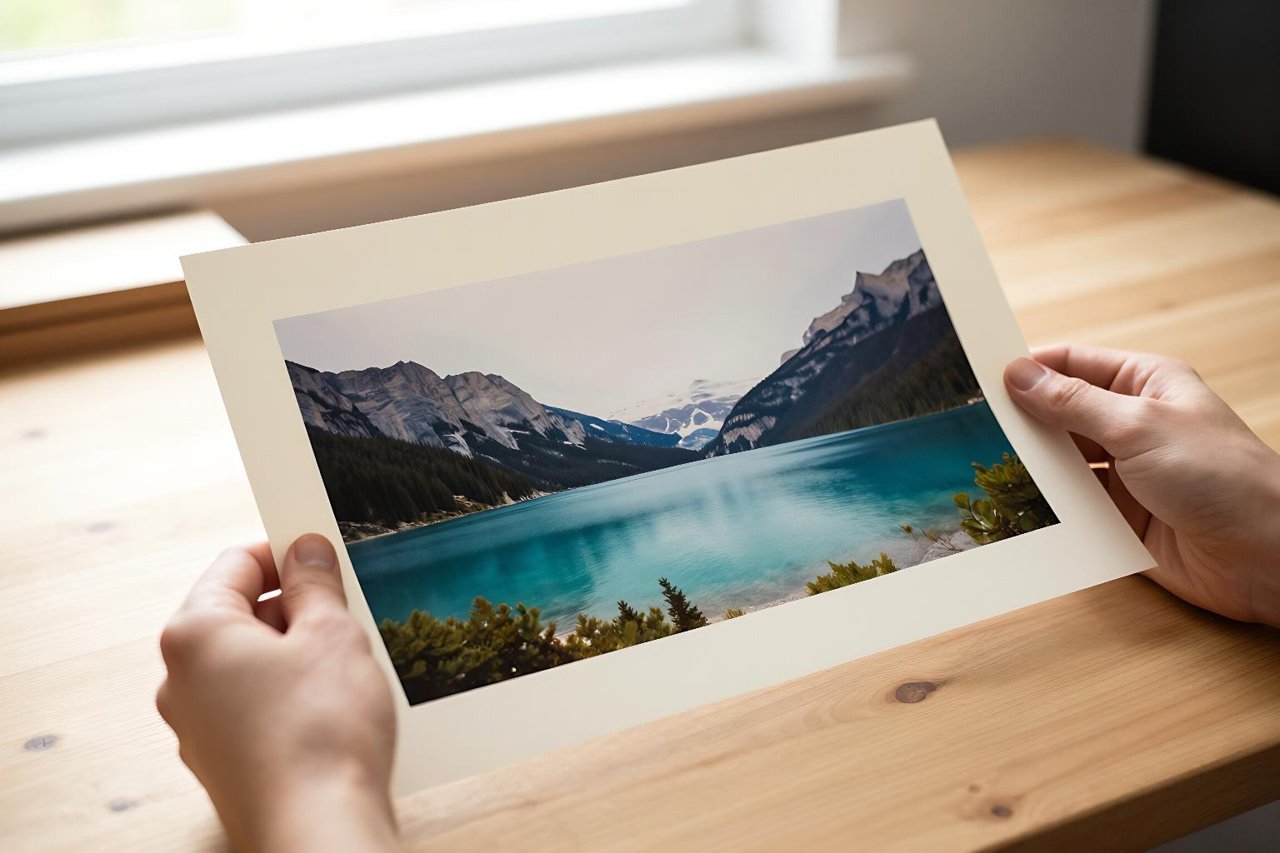
A photo you love with the wrong framing is a frustrating thing. The subject sits hard against the left edge, the roofline gets sliced off, or you shot portrait and now need a wide banner for a landing page. Cropping tighter just makes it worse, and reshooting isn’t happening. AI image outpainting fixes this by growing the canvas outward and generating pixels that belong there.
What AI image outpainting actually does
Outpainting is inpainting turned inside out. Inpainting fills a gap inside a picture. Outpainting adds space around the edges. You hand the model the original image plus a border of empty canvas, and it predicts what belongs in that border: continuing the sky, the floorboards, the treeline, the studio backdrop.
Diffusion models handle this by reading the pixels they already have. They pick up on light direction, colour temperature, grain, focal length and vanishing points, then extend those cues into the new area. The better the original photo, the easier the job, which is why a sharp, evenly lit image beats a noisy phone snap every time.
Nearly every mainstream tool now ships some version of it. Photoshop calls it Generative Expand, Canva hides it behind Magic Expand, and open-source workflows run outpaint scripts that grow the canvas in strips. A lot of the recent jump in quality comes down to fill-capable diffusion models, and the open-source AI image model that changed the game is the one most of them build on.
Why the edges are harder than the middle
Generating a whole new image is forgiving. Nobody knows what the correct version looks like. Extending an existing one is not forgiving at all, because the original pins down the answers. The model has to match what’s already there or the seam shows.
Light and perspective have to agree
If the sun in your photo comes from the upper left, the new sky and the new ground have to agree with that. A model that adds a soft, directionless glow to the extended area looks wrong even when every pixel is technically clean. The same goes for perspective. Extend a hallway in the wrong direction and the lines stop converging where they should.
This is why small extensions work so well. Twenty to thirty percent more canvas gives the model plenty of context and very little room to invent. Push to four times the original width and it starts repeating textures, duplicating windows, or drifting into a hazy smear.
Style drift creeps in
The other failure is subtler. New pixels have the right content but the wrong feel. They’re sharper than the original, or cleaner, or slightly cooler in tone. On a thumbnail nobody notices. Blown up on a print, the border reads as a border. Matching grain and softening the output slightly usually closes the gap.
Where outpainting earns its keep
- Aspect ratio fixes. Turning a 3:2 photo into a 16:9 hero banner without cropping off the subject’s feet.
- Cropped product shots. E-commerce images shot too tight, where the model extends the seamless backdrop and surface.
- Interiors and architecture. Widening a room photo taken with too narrow a lens so the space reads properly.
- Restoration. Old photos with damaged or trimmed edges, where the missing margin gets rebuilt.
- Social formats. One image, extended four different ways for square, portrait, story and landscape placements.
Prompting for the part that doesn’t exist yet
A lot of people get mediocre results because they describe the whole picture. The model already sees the original. It doesn’t need to be told there’s a lake in the middle. What it needs is guidance on the new region.
Describe the extension only: “continues into open sky with thin cirrus clouds” or “sand and pebbles continuing the beach to the right, wet at the tideline.” Short, spatial, specific. Leave the rest alone. If your tool supports a negative prompt, listing what you don’t want at the edges such as blur, vignetting, duplicate objects, text and heavy symmetry saves a lot of retries.
Work in passes rather than all at once. Extend 15 percent, check the seam, then extend again. Each pass gives the model fresh pixels to read from and keeps the whole thing coherent. Feeding a finished outpaint back through an AI image generator that starts from your own photo is also worth trying when you want a bigger creative push rather than a faithful extension.
Settings that matter more than people think
Overlap between the original and the generated region should be generous, somewhere around 15 to 25 percent of the original dimension. Feather the mask so the transition isn’t a hard line. Keep the seed fixed if your tool exposes it, so retries only change the new area. And generate a few candidates rather than accepting the first one, because quality swings wildly between attempts on identical prompts.
Tools worth knowing
Photoshop’s Generative Expand is the most forgiving place to start: pick the crop tool, drag past the edge, hit generate. Canva’s Magic Expand does the same job with less control. For open-source work, ComfyUI and AUTOMATIC1111 both have outpaint workflows, and FLUX Fill models handle the masked generation step well. There’s a solid breakdown of the FLUX image generator’s strengths and weak spots if you’re weighing that route.
Dedicated upscalers with outpaint features are the other category. They’re handy when the final image needs to survive a 4000-pixel export for print and the extension has to hold up at that size.
Mistakes that break the illusion
Extending too far on the first try. One huge jump is where most ugly results come from. Several small jumps beat it every time.
Ignoring the horizon. A slight tilt in a generated skyline is the most noticeable flaw in landscape extensions. Draw a straight guide across the original horizon before generating.
Forgetting the corners. Corners are where models get lazy: repeated motifs, smeared detail, a strange softness. Zoom to 100 percent and check all four before committing.
Skipping the colour match. A two-second curves adjustment on the new region often does more for realism than three extra generations.
A repeatable workflow that keeps seams invisible
Start with the cleanest version of the source you have: straighten it, remove obvious noise, fix the exposure. Lock the original as a separate layer so you always have something to compare against.
Set the canvas 15 to 25 percent larger on the side that needs room. Prompt only the new area. Generate three or four options. Pick the one whose light and colour sit closest to the original, not the one with the most interesting detail.
Blend the seam with a soft mask or a short feather. Match grain and drop the sharpness slightly in the new region. If you still need more canvas, repeat from step two with the blended result as your new source.
Finish by viewing the image at 50 percent zoom on a normal screen. That’s how most people will actually see it, and it’s the best test of whether the extension holds. If a detail bothers you at full size but vanishes at half size, leave it. Knowing when to stop is the last skill to learn with outpainting, and it saves more time than any prompt trick.