

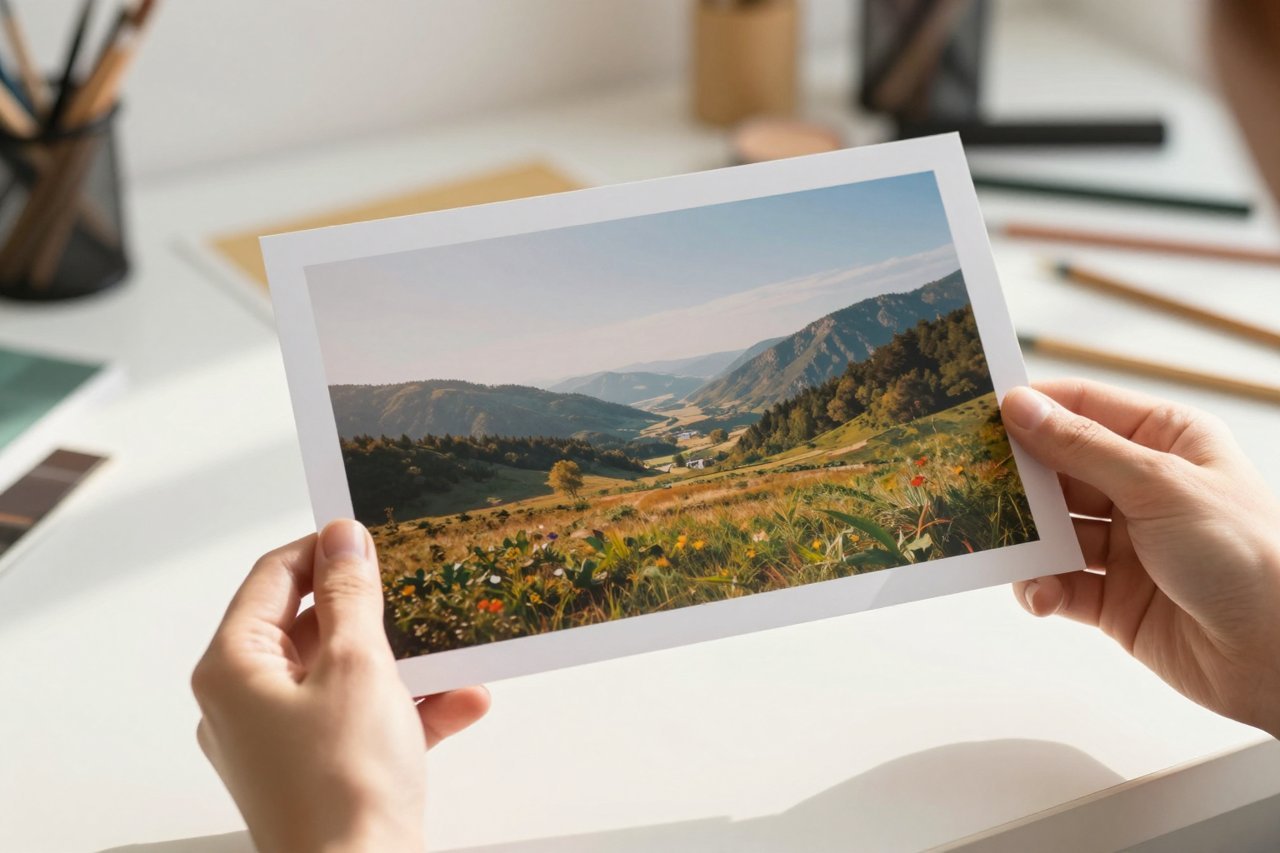
A couple of years ago, creating a photorealistic image from a text prompt felt like science fiction. Now, you can do it while waiting for your coffee to brew, and you don’t even need a paid subscription to get solid results. The AI photo generator free landscape has exploded, with options for every skill level, artistic style, and workflow. Some tools live in your browser. Others have dedicated mobile apps. A handful are even open source and run locally on your own machine.
I spent the last week testing a dozen of these tools. I pushed them with unusual prompts, tricky lighting, and awkward compositions. Some came out beautifully. Others made me laugh out loud. The goal was simple: find the tools that produce genuinely useful images without requiring a credit card. I also looked for interfaces that don’t make you feel like you’re wrestling with a research prototype. After generating more than 200 images, a clear pattern emerged. The best free tools aren’t the ones that promise infinite generations. They’re the ones that respect your time and give you enough control to produce something you’d actually share.
What Does “Free” Actually Mean with AI Photo Generators?
Before you start typing prompts, you need to understand the fine print. Most free plans aren’t truly unlimited. They usually work on a credit system or a daily limit. For example, you might get 15 credits per day, which means 15 image generations. That’s more than enough for a casual user, but if you’re a designer iterating on a concept, you’ll burn through those credits in an hour.
Here’s what to check before signing up:
- Watermark: Some free tools slap a logo in the corner. Others let you remove it for a one-time fee or by explicitly sharing the image.
- Resolution: Free plans often cap the output at 1024×1024 pixels. That’s fine for social media, but not for large print.
- Generation speed: Queries in free tiers can take 30 seconds or more while you wait in a queue.
- Commercial rights: If you’re using images for a business, check the license. Many free tools only allow personal, non-commercial use.
Understanding these limits helps you pick the right tool for your specific goal, whether that’s a quick brainstorm or a finished profile picture.
The Best Free AI Photo Generators We Actually Used
After testing, I created a shortlist of seven tools worth your time: Bing Image Creator, Craiyon, Adobe Firefly, Playground AI, Leonardo AI, Dream by Wombo, and Stable Diffusion. I’ll go into detail on the first three, then give you a cheat sheet for the rest.
Text-to-Image: Quick and Satisfying
Bing Image Creator is built on an advanced version of OpenAI’s DALL-E and is completely free. You get 15 “boosts” per day, which means priority generation. After that, the tool still works, but it’s slower. For a quick logo concept or an editorial illustration, it’s hard to beat.
Craiyon (formerly DALL-E Mini) is another free option that’s been around for years. It produces a grid of nine images per prompt, which is perfect for brainstorming. The quality isn’t photorealistic, but it’s surprisingly good at generating character designs and abstract compositions.
If you want to compare more tools side by side, this roundup of the best free AI image generators breaks down five popular options with sample outputs. It’s a handy reference when you’re trying to decide which one to keep.
Image-to-Image: Transform What You Already Have
Sometimes you don’t want to describe a scene from scratch. You want to restyle your cat photo as a Renaissance painting or expand a landscape into a wide panoramic shot. That’s where image-to-image tools excel. They let you upload an existing image and then guide the AI with a text prompt to change lighting, composition, or even add elements.
This approach feels more like collaborating with an art director than typing a magic spell. You can start with a rough sketch and ask the AI to fill in realistic textures and shadows. A dedicated guide on AI image generators from images walks through the best ways to use this technique, including how to maintain consistency across multiple generations.
Adobe Firefly: A Polished Option for Creators
Adobe’s entry into the generative AI space is different. Firefly is trained on licensed content, which means the results are less likely to resemble existing artwork. It also integrates directly with Photoshop and Illustrator, so you can generate a new element and then edit it without ever leaving your design software. The free tier gives you a generous number of monthly credits. An inside look at Adobe Firefly explains how the toolkit handles rights and input from artists, which is a big deal for professional work.
For quick ideas, I still reach for simpler tools, but when I need a asset for a client project, Firefly is a safer bet.
The Rest of the Shortlist
Playground AI offers a daily credit system that refills around midday, and it’s great for trying out different styles. Leonardo AI is popular with game developers for its strong base model and fine-grained controls. Dream by Wombo is the easiest app for quick character art, though it has a more stylised look. Stable Diffusion is the open-source powerhouse, but it’s best used through a service like Hugging Face if you don’t want to install software locally.
How to Get the Best Results from a Free AI Photo Generator
The biggest mistake I see people make is typing something lazy like “a dog on a beach” and expecting a masterpiece. AI models thrive on specificity. Instead of “a dog on a beach,” try “a golden retriever running along the shoreline at sunset, long exposure waves, cinematic lighting, 35mm film grain.” The more context you give, the better the machine can translate it into a visual.
Here are a few other tricks that helped me produce usable images:
- Mention the medium: Add “photorealistic,” “oil painting,” “3D render,” or “watercolor” to the prompt to steer the style.
- Include lighting direction: Phrases like “soft morning light” or “neon sign overhead” change the mood completely.
- Use negative prompts when available: Some tools let you specify what you don’t want, like “blurry” or “extra fingers.” This saves a lot of retries.
- Start with a simple composition: If the AI struggles, simplify the scene and add complexity later.
Generative AI is still a guessing game. Even the best tools occasionally give you a perfectly composed image with an elephant holding a balloon that has poorly rendered text. That’s fine-you can always roll again.
Hidden Limits to Watch Out For
One of the most annoying surprises is when you create a stunning image, only to realise you can’t download the full resolution without upgrading. Some tools only let you download a preview, while the actual file sits behind a paywall. Always check the download button before you spend 20 minutes perfecting a prompt.
Another limit is the style “trap.” Free models often have a default aesthetic that leans toward oversaturated colors and smooth skin. If you’re looking for gritty film grain or realistic skin texture, you may need to add explicit descriptors to every prompt. Over time, you’ll learn which tools naturally lean in the direction you want.
How to Choose the Right Tool for Your Workflow
If you’re a writer who needs quick thumbnail concepts, choose a tool with a simple interface and a daily credit system. If you’re a photographer experimenting with new editing techniques, an image-to-image generator might be more useful. And if you’re a designer already in the Adobe ecosystem, Firefly is the obvious choice.
There’s also a middle ground: some platforms like Playground AI and Leonardo AI offer both text-to-image and image-to-image features in the same workspace. This is handy when you want to try one tool for multiple tasks. Free accounts typically give you a smaller credit pool, but you can earn more by sharing images publicly or completing simple tasks.
The best approach is to use two different tools: one for rapid ideation and another for final, export-ready images. Keep a list of your go-to prompts. Once you find a phrasing that works, repeat it across tools to see which one delivers the best quality for that specific use case.
I’ve been using one AI photo generator free tool for quick character sketches and another for high-res product mockups, and the combination feels better than any single premium subscription I’ve tried. There’s a real advantage to having options. Start with the tools I mentioned, spend a few hours testing them, and see which one fits your creative rhythm. Before long, you’ll have a reliable shortcut for turning an idea into a visual.