

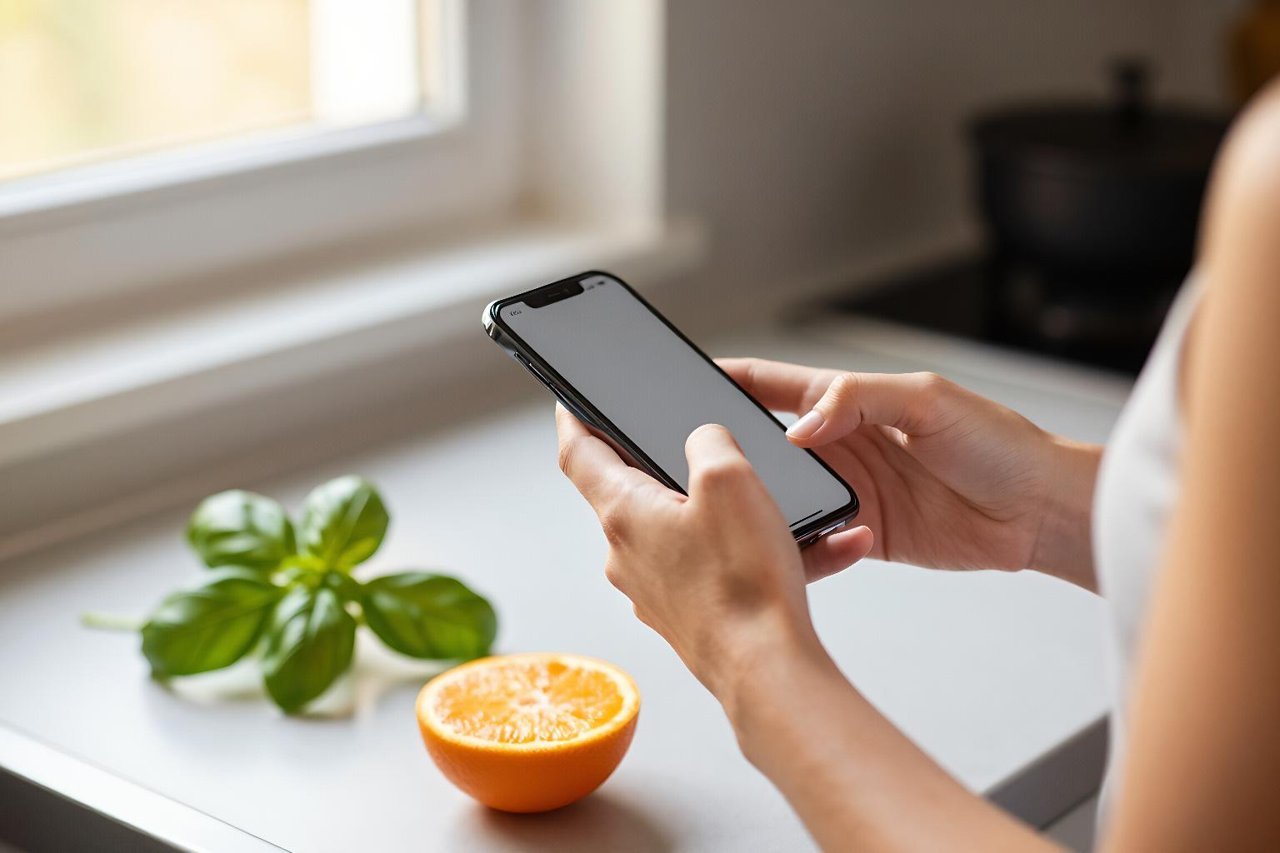
There is a photo sitting on your phone that you took for a reason and never used. A parking ticket you meant to pay. A whiteboard from Tuesday’s meeting. A plant in the garden that has started turning yellow. Gemini’s image upload feature exists for exactly that gap: you hand the assistant a picture, ask a question, and get an answer based on what is actually visible rather than what you managed to describe in a sentence.
It sounds like a small thing until you have used it a dozen times. Then you notice how much of your day involves translating the visual world into words for other people, and how much of that translation Gemini will happily do for free.
What Gemini actually does with an uploaded image
The assistant does not just run text recognition on your photo and hand back a wall of characters. It looks at the whole frame: layout, colour, objects, spatial relationships, and the context around whatever is in the centre. Upload a shot of a bridge at sunset and it will describe the structure, take a reasonable guess at the architectural style, and mention that the light looks like the last hour before dusk.
That is the practical difference between OCR, which finds letters, and vision, which finds meaning. The second one is what makes the feature useful, and also what makes its mistakes more interesting.
The three jobs it handles cleanly
- Reading. Screenshots, printed pages, receipts, signs, ingredient lists, error messages. If a human could squint and read it, Gemini usually can too.
- Identifying. Plants, birds, landmarks, car parts, obscure kitchen gadgets, the mystery vegetable at the back of the fridge.
- Interpreting. Charts, diagrams, hand-drawn sketches, wiring layouts, spreadsheet screenshots where you want the numbers pulled out into a table.
If your task falls outside those three, results get patchy fast. More on that below.
How to upload an image, wherever you happen to be
On the web at gemini.google.com, the attach button sits in the prompt bar next to the microphone icon. Click it, pick your file, type your question, send. In the mobile app the same button is a small plus or image icon depending on platform. You can attach images alongside text in the same prompt, which matters more than it sounds: the question you ask shapes the answer far more than the photo does.
The experience differs enough between platforms that it is worth knowing which one you are on. If you are on an iPhone, there are quirks in how the app handles photo permissions and sharing from other apps worth reading up on in this breakdown of what the Gemini app does on iPhone. Android users get a slightly different flow, particularly when calling Gemini up over the top of another app, as covered in this look at how Gemini behaves on Android.
Five tasks where image upload earns its keep
1. Homework stuck on a diagram
A photo of a geometry problem, a labelled cell diagram, or a page of chemistry equations gives Gemini something concrete to work with. Ask it to explain the reasoning rather than just supply the answer, and you get a walkthrough you can actually learn from. Students get the most value here when they photograph their own attempt and ask where it went wrong, rather than photographing a blank question. There is a wider set of examples in this guide to where Gemini genuinely helps students.
2. Cooking from whatever is left in the fridge
Photograph the open fridge and ask for three dinners that use what is there without a trip to the shop. The answers are only as good as the photo, so open the door properly and get the shelves in frame. It will miss the jar at the back if the jar is not visible, and it will not invent a protein you do not have.
3. Debugging from a screenshot
Paste a screenshot of a stack trace or a broken layout and ask what is likely causing it. Gemini reads indentation, error codes, and file paths reasonably well. What it cannot do is run your code, so treat its answer as a strong first hypothesis rather than a diagnosis.
4. Turning a photo into a table
Photograph a printed timetable, price list, or invoice and ask for the contents as a markdown table. This is one of the few jobs where the output saves real time, because the alternative is retyping twelve rows by hand. Check the numbers before you trust them, particularly anything with decimal points.
5. Translating signs and menus
Point the camera at a menu in a language you do not read and ask for a translation with a note on which dishes are vegetarian or contain nuts. It handles this well, including handwritten specials boards, which is more than most translation apps manage.
Where it quietly falls apart
The failures are not dramatic. They are the small, confident errors that cost you twenty minutes later.
Handwriting is the big one. Neat print is fine. A doctor’s scrawl or a rushed shopping list is a coin flip. Dense tables with small print lose rows. Low-light photos with motion blur produce guesses dressed up as facts, and Gemini will rarely tell you the image was too poor to read. Blurry photos of people or objects can also trigger invented detail: it describes a logo that is not there, or names a model of car that does not match the shape.
Maths on photographed equations is another soft spot. The transcription is usually right, the arithmetic less so. If the answer matters, ask it to show each step and check the steps yourself.
Prompting tricks that change the output
Most disappointing results come from a vague question, not a bad photo. Three habits fix the majority of them:
Say what you want done, not what you want to know. “Extract every date and amount from this receipt into a table” beats “what does this say” every time.
Give it a role. “You are an electrician looking at this wiring photo” pulls a very different, more careful answer than a bare question.
Ask it to flag uncertainty. Adding “tell me which parts of the image you cannot read clearly” turns silent guessing into a visible caveat. The wider set of capabilities in the Gemini app overall follows the same pattern: the tool is strong, the prompting decides the result.
What happens to your photos after you hit send
Uploaded images go to Google’s servers to be processed, and they are stored as part of your Gemini Apps activity. You can review and delete that history, set it to auto-delete after 3, 18, or 36 months, or switch it off entirely. Some conversations are reviewed by humans for quality, which is another reason to think twice before uploading anything sensitive.
The obvious ones to avoid: passports and driving licences, bank statements, medical letters, and photos of other people who have not agreed to any of this. A photo of your own kitchen is harmless. A photo of your tenancy agreement is not.
When a different assistant is the better call
Image upload is not where Gemini’s lead is widest. Claude is careful and thorough with documents and screenshots, and tends to say when it cannot read something rather than guessing. Copilot slots more naturally into Microsoft work if that is where your files already live. If you are trying to decide between them, this comparison of Gemini and Claude’s different instincts is a fair place to start.
Where Gemini does pull ahead is speed and availability. It is already on your phone, in your browser, and one tap away from the camera roll. That convenience is the whole point. A tool you actually open beats a marginally better one buried three screens deep.
The habit that makes image upload worth keeping is simple: the next time you catch yourself retyping something off a screen or a piece of paper, photograph it instead. Triage the screenshots folder once a week, ask Gemini to pull the useful bits out, and delete the rest. After a month you will have a decent sense of which photos it reads perfectly and which ones it only pretends to read, and that instinct is worth more than any list of features.