

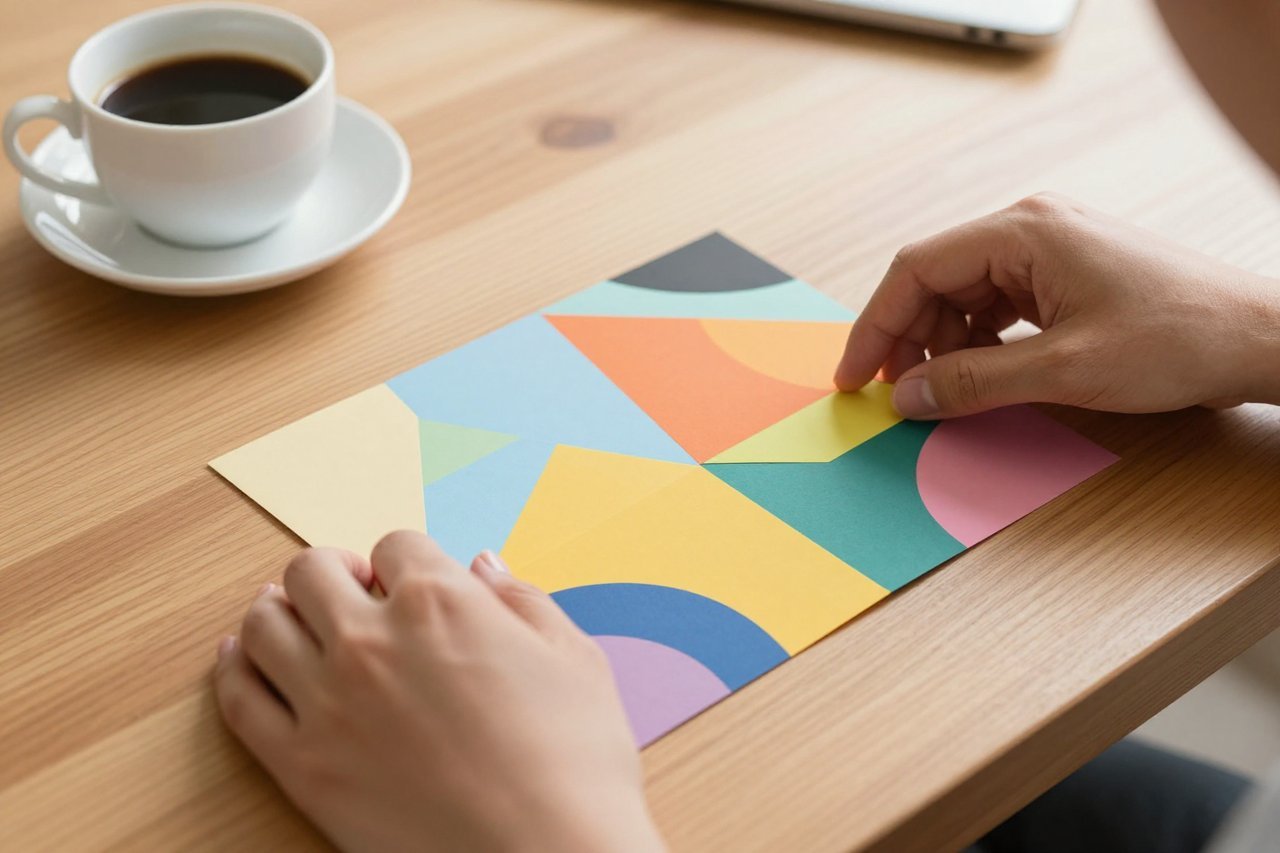
Canva has made AI the centerpiece of its recent updates, and Magic Design is one of the first things you’ll see when you open the editor. It promises to turn a single sentence into a full set of layouts. But does it actually deliver, or is it just a gimmick? After spending a week pushing it through real-world projects, I have a clear picture of what it can do, what it can’t, and exactly where it fits into your workflow.
What Is Canva Magic Design?
Magic Design is Canva’s generative design tool. You type a description of what you need—like “modern corporate pitch deck” or “birthday invitation with balloons”—and the system generates a series of pre-styled templates. These aren’t generic stock templates, though. They’re built specifically for your prompt, with matched color palettes, fonts, and layouts.
The core idea is simplicity. Instead of starting from a blank canvas and hunting for the right template, you type a sentence, pick a design, and then customize from there. It’s a direct response to the question every casual Canva user has asked at some point: “Why are there 10,000 templates and I still have to tweak everything?”
If you’re curious about how this fits into Canva’s broader AI toolkit, you can read about what works and what doesn’t across Canva’s entire AI suite. But Magic Design deserves a closer look on its own.
How to Use Magic Design (and Get Good Results)
You’ll find Magic Design in the home toolbar when you create a new design. Here’s the workflow I’ve settled on after several attempts:
- Type a descriptive phrase—not just “poster” but “colorful street food festival poster with tomatoes and basil”.
- Select the design type from the dropdown (poster, Instagram story, presentation, etc.) or let Canva guess.
- Wait about three seconds while it generates around 20 variations.
- Scroll through and pick one that matches the vibe you’re after.
- Hit edit and replace the placeholder text and images with your real content.
The generation speed is genuinely impressive. Even with a complex prompt, you’ll have options in under five seconds. The variations aren’t just minor re-skins either—you get different type treatments, background washes, and layout structures.
One trick that works well: include a color or a specific word like “minimalist” or “grunge” in your prompt. Magic Design treats these as strong signals. For example, asking for a “minimalist portfolio cover with lots of white space” produced noticeably cleaner results than just “portfolio cover”.
You can also upload your own image and let Magic Design build around it. I tested this with a photo of a coffee shop interior. The tool generated a menu and a social post layout that matched the lighting and tones in the photo. That’s a feature called Magic Design for Images, and it’s much harder to find design software doing this well.
What Magic Design Gets Right
I’ve tried similar features in other tools, and Magic Design has a few genuine strengths:
- Speed for first drafts: Getting to a reasonable starting point takes seconds, not minutes. This is invaluable when you’re staring at a blinking cursor.
- Consistent output: The generated designs all feel like they belong together. You won’t get one that looks like a 1998 website and another that looks like a luxury brand.
- Actionable customization: Everything in a Magic Design output is editable as standard Canva elements. You’re not locked into a rigid format.
- Great for non-designers: If you know what you want to say but don’t know how it should look, Magic Design gives you a visual starting point that’s easy to adjust.
It also quietly improves your design sense. If you ask for a specific style, you can see how Canva interprets that in terms of font pairings and spacing. It’s like having a template engine that teaches through example.
Where Magic Design Falls Short
The tool isn’t perfect. In fact, it has some frustrating limitations that you should know about before you rely on it.
The most significant problem is that Magic Design reuses layout structures more than it appears to. If you generate a dozen designs for a “book review Instagram story” and then another dozen for a “book promo Instagram story”, you’ll start to see the same skeleton with different colors and text. It’s not truly generating from scratch—it’s remixing existing layout patterns. That’s fine for starting points, but it means the output can feel formulaic after a while.
Text handling is also a weak spot. Magic Design is great at placing short headlines and labels, but it struggles with longer paragraphs. If your draft has substantial body copy, the generated design will often cram it into a small text box or cut it off. You’ll need to manually rethink the layout for text-heavy projects.
And like any AI trained on internet data, it has blind spots. Canva’s AI has been criticized for problematic generations related to sensitive topics, so it’s worth double-checking anything that involves culture, geography, or identity.
How Magic Design Compares to Other AI Design Tools
Canva isn’t the only company chasing this idea. If you’ve tried presentation-focused alternatives like Beautiful.ai, you’ll notice they take a different approach. Beautiful.ai asks you for the content first and then renders it into a slide deck automatically. Magic Design lets you describe the visuals first and worry about content later. Both are valid, but they lead to different workflows.
Another interesting contrast is with Adobe’s Firefly integration. Adobe’s conversational AI agent has been likened to a mediocre design intern—it produces average results that need heavy iteration. Magic Design feels more polished in contrast, but it also has a narrower scope. You won’t be generating complex vector illustrations or intricate data visualizations like you can in Illustrator with Firefly.
Magic Design’s big advantage is that it lives inside Canva. You get the AI generation, the built-in library of photos and elements, and the collaboration features all in one place. With other tools, you often have to generate the design in one app and then export it to something else for editing.
Workflow Tips for Getting the Most Out of Magic Design
After all that testing, here are the exact ways I now use Magic Design in my own work:
- Always provide a point of reference. Instead of saying “yoga flyer”, say “yoga flyer for a coastal retreat, soft pastel colors, organic shapes”. The specificity is what separates a generic result from a usable one.
- Generate multiple times. The first batch is never the best. Generate once, pick a close match, then tweak your prompt and generate again. The second or third try will often nail it.
- Use it for content repurposing. If you have a blog post, drop some of the key headings and quotes into Magic Design and see what it suggests. It’s a fantastic way to create social images or slide decks from existing text.
- Edit the layout, not just the text. Don’t be afraid to move elements around. The AI gives you a scaffold, but the final polish is still on you.
It’s also worth understanding where Canva is heading with its AI. Canva’s CPO Cameron Adams has explained the roadmap for Canva AI 2.0, and Magic Design is clearly the first step toward a more fully automated design experience. That context helps you decide how much time to invest in learning it today.
Does Magic Design Replace Your Designer?
No, and it’s not trying to. What it does is remove the friction between having an idea and seeing it visually. For solo creators, small business owners, and anyone who’s ever felt paralyzed by a blank canvas, that’s a massive time saver.
Using Magic Design Without Losing Your Unique Voice
The biggest risk with AI-generated design is that your output starts to look like everyone else’s. Because Magic Design draws on the same template structures and style patterns, you need to add something personal to the mix.
My advice: use Magic Design to generate the bones, then layer in your brand colors, your actual photo assets, and the specific details that tell your story. That could mean swapping out a generic illustration for a photo you shot, changing the font to something from your brand kit, or rewriting the headline with your actual offer.
Mockups and generic layouts are only the beginning. The final design should always have a human fingerprint on it—because ultimately, that’s what earns trust with your audience.