


Once you open Codex, create your first thread. A thread is like a chat in ChatGPT: a space where you go back and forth with Codex to accomplish a task.
Codex keeps your projects and conversation history in the left sidebar, while the main workspace shows your current thread and the chat where you collaborate with Codex.
You can create a standalone thread, but most of the time you’ll want to work inside a project. A project is connected to a folder on your computer:
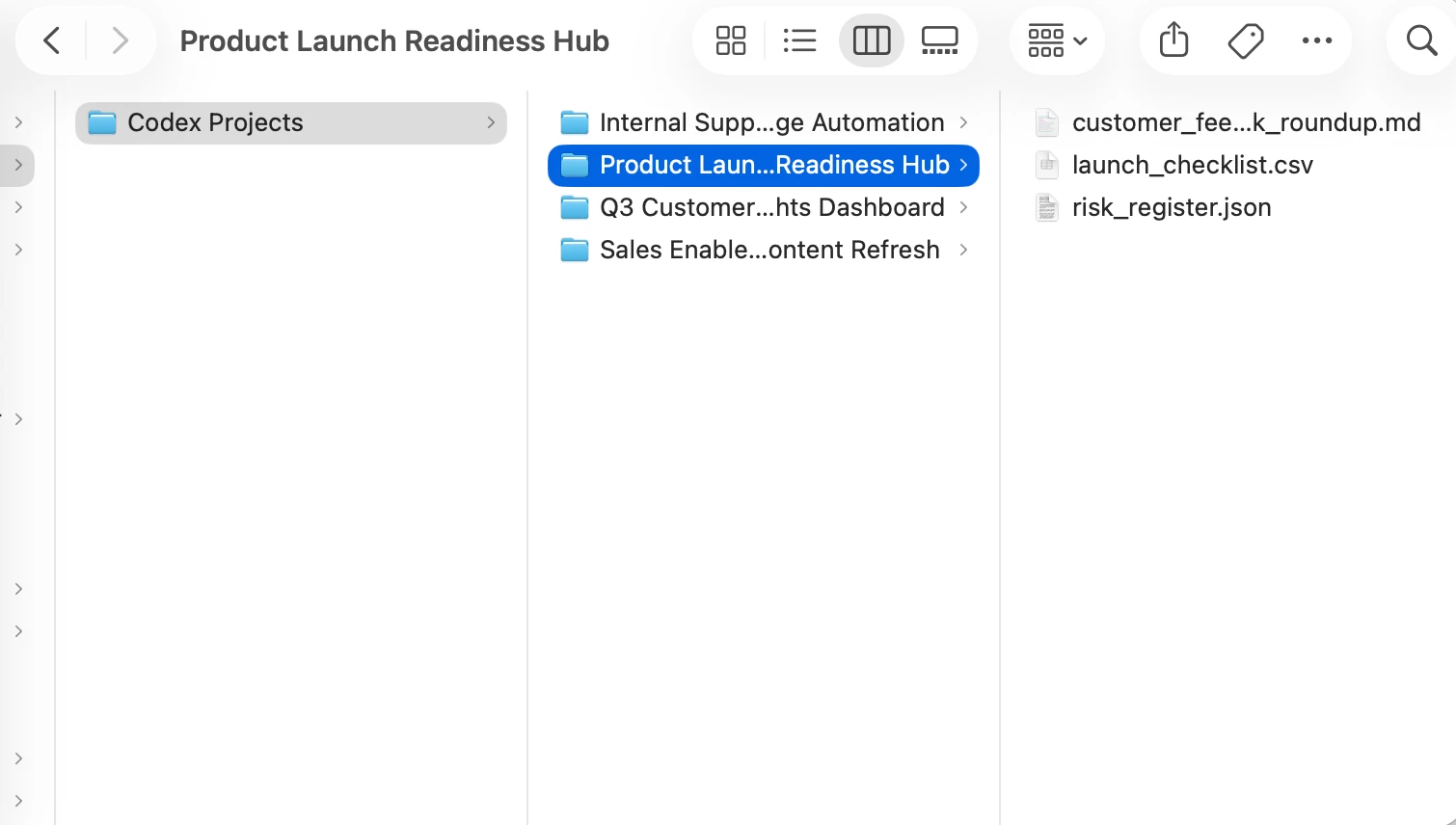
Tip: To keep things simple, create a folder on your computer named Codex. Inside that Codex folder, you can have a separate folder for each project.
If you want Codex to work with specific files for a project, just drag them into the folder. If not, you can leave the folder empty and use it as the place where Codex creates new files for that project.
Pick a first task that is simple and useful. For example, you might ask Codex to organize notes, clean up a small dataset, or compare two drafts of a document.

Start with the default recommended Codex model, and increase reasoning for harder tasks.
If you’re working in a project, you may see the term “Work locally” below the input box. This means “Codex can only work in that folder I designated, using the tools that I choose.” You’ll also see a dropdown menu asking whether you want to change permissions. We recommend sticking with Default permissions in a local environment when you’re getting started with Codex. Codex does not automatically get access to everything on your computer.
Full permissions give Codex more room to act, which can be helpful for advanced tasks, but you should only use them when you understand what Codex is doing and you’ve checked with an admin.
As you get more comfortable, you can give Codex bigger tasks. Start small, review what it does, and build trust one task at a time.